Managing Secrets with HashiCorp Vault
Previous: Managing Secrets
Applications running on your Raspberry Pi need sensitive data like API keys, database passwords, and authentication tokens. In this guide, we'll set up HashiCorp Vault - a production-grade secrets management system that addresses the security limitations of the Ansible Vault approach.
Coming from the beginner guide? If you haven't already, check out Managing Secrets with Ansible Vault first. This guide builds on those concepts but eliminates the core security flaw: secrets written to plain text files on disk.
What this tutorial covers:
- Automated Vault deployment using Ansible
- Docker Compose setup with auto-unseal on boot
- Cloudflare tunnel for secure remote access
- Creating and managing secrets via UI and CLI
- GitHub Actions integration with proper syntax
- Security best practices and troubleshooting
Time to complete: 15-20 minutes
Github Repository
All the Vault configuration and deployment scripts from this guide are available in https://github.com/IaC-Toolbox/iac-toolbox-raspberrypi. Feel free to clone it and follow along!
How HashiCorp Vault Improves Security
This approach addresses all the major security flaws from the Ansible Vault method:
Problem → Solution
-
❌ Plain text secrets on disk (
/etc/raspberrypi.env):- ✅ Secrets stay encrypted in Vault's storage - Never written to plain text files
-
❌ Any SSH user can read
/etc/raspberrypi.env:- ✅ Token-based access control - Only authorized applications with valid tokens can read secrets
-
❌ No audit trail of who accessed what:
- ✅ Complete audit logging - Every secret read is logged with timestamp and accessor
-
❌ All-or-nothing access (you see the whole file or nothing):
- ✅ Granular policies - Create tokens that can only read specific secret paths
-
❌ Secrets visible in process memory and
/proc/:- ✅ Fetch on-demand - Applications request secrets only when needed, can refresh them
Developer Experience Improvements
Beyond security, Vault also makes day-to-day operations easier:
- Web UI - Manage secrets visually instead of editing encrypted YAML files
- Versioning - Track secret changes over time, rollback if needed
- API-first design - Easy integration with any language or framework
- No local
.envfiles - Update production secrets directly in Vault UI from anywhere
The Strategy
We're going to:
- Deploy Vault on Raspberry Pi using automated Ansible role
- Set up automated unsealing on boot via systemd
- Configure Cloudflare tunnel for remote access
- Store secrets in Vault's KV v2 engine
- Configure GitHub Actions to fetch secrets at runtime
Architecture Overview
Automated Deployment with Ansible
This guide uses an automated Ansible role that handles all the setup. The role is available in the repository at ansible-configurations/playbooks/roles/vault/.
Quick Start
- Configure inventory (edit
ansible-configurations/inventory/group_vars/all.yml):
vault:
  enabled: true
  version: "latest"
  base_dir: "/home/{{ ansible_user }}/vault"
  port: 8200
  enable_kv: true
  enable_audit: true

cloudflare:
  enabled: true
  tunnel_name: main-backend-tunnel
  domains:
    - hostname: vault.iac-toolbox.com
service_port: 8200- Deploy Vault:
cd ansible-configurations
ansible-playbook -i inventory/all.yml playbooks/main.yml --tags vault- Save credentials displayed in Ansible output
Docker Compose Configuration
The Ansible role creates this docker-compose.yml (no manual creation needed):
services:
  vault:
    image: hashicorp/vault:latest
    container_name: vault
    restart: unless-stopped
    ports:
      - "8200:8200"
    environment:
      VAULT_ADDR: 'http://0.0.0.0:8200'
    cap_add:
      - IPC_LOCK
    volumes:
      - ./config:/vault/config:ro
      - ./data:/vault/data
      - ./logs:/vault/logs
    command: server
    healthcheck:
      test: ["CMD", "sh", "-c", "vault status || true"]
      interval: 10s
      timeout: 5s
      retries: 3

  vault-unsealer:
    image: hashicorp/vault:latest
    container_name: vault-unsealer
    restart: "no"
    depends_on:
      vault:
        condition: service_healthy
    environment:
      VAULT_ADDR: 'http://vault:8200'
    volumes:
      - ./scripts:/scripts:ro
      - ./data:/vault/data
    entrypoint: ["/bin/sh", "/scripts/auto-unseal.sh"]
    profiles:
      - unseal
Key Points:
- No
versionfield (obsolete in Docker Compose v2) - Health check accepts sealed/uninitialized states
- Unsealer runs via profile (triggered by Ansible)
Vault Server Configuration
The Ansible role creates config/vault.hcl:
ui = true

listener "tcp" {
  address     = "0.0.0.0:8200"
  tls_disable = 1
}

storage "file" {
  path = "/vault/data"
}

api_addr = "http://0.0.0.0:8200"
disable_mlock = true
Configuration Notes:
tls_disable = 1: TLS is handled by Cloudflare tunnelui = true: Enables the web interfacestorage "file": Persistent file-based storagedisable_mlock = true: Required for Docker on Raspberry Pi
Auto-Initialization Script
The Ansible role creates scripts/auto-unseal.sh:
#!/bin/sh
set -e

INIT_FILE="/vault/data/vault-init.json"

# Wait for Vault to be ready
echo "Waiting for Vault..."
max_attempts=30
attempt=0

while [ $attempt -lt $max_attempts ]; do
  if vault status >/dev/null 2>&1 || [ $? -eq 2 ]; then
    echo "Vault is ready"
    break
  fi
  attempt=$((attempt + 1))
  sleep 2
done

# Check if Vault is initialized
if ! vault status -format=json | grep -q '"initialized":true'; then
  echo "Initializing Vault..."
  vault operator init -key-shares=1 -key-threshold=1 -format=json > "$INIT_FILE"
  echo "Vault initialized! Credentials saved to $INIT_FILE"
  echo "Ansible will handle unsealing..."
else
  echo "Vault already initialized"
fi

# Note: Unsealing is now handled by Ansible after this script completes
vault status || true
How it works:
- Script initializes Vault on first run
- Saves credentials to
vault-init.json - Ansible reads the JSON file and unseals Vault
- Systemd ensures this runs on boot
Deployment Steps
Prerequisites
- Ansible installed on your Mac
- SSH access to Raspberry Pi configured
- Cloudflare tunnel authenticated (run
cloudflared tunnel loginon Pi)
Deploy Vault
cd ansible-configurations
ansible-playbook -i inventory/all.yml playbooks/main.yml --tags vault
The playbook will:
- Create vault directories with correct permissions
- Deploy Docker Compose configuration
- Start Vault container
- Initialize Vault (first run only)
- Unseal Vault automatically
- Enable KV v2 secrets engine
- Enable audit logging
- Create systemd services for auto-start on boot
Expected Output
TASK [vault : Display Vault access information]
ok: [raspberrypi] => {
    "msg": [
        "==========================================",
        "HashiCorp Vault has been successfully deployed!",
        "==========================================",
        "Access URL: https://vault.iac-toolbox.com",
        "Root Token: hvs.PX0...",
        "",
        "IMPORTANT: Save these credentials securely!",
        "Unseal Key: ...",
        "",
        "Vault initialization details saved to: /home/pi/vault/data/vault-init.json"
    ]
}IMPORTANT: Save these credentials! You'll need them to access Vault.
Access Vault UI
Open your browser and navigate to:
https://vault.iac-toolbox.com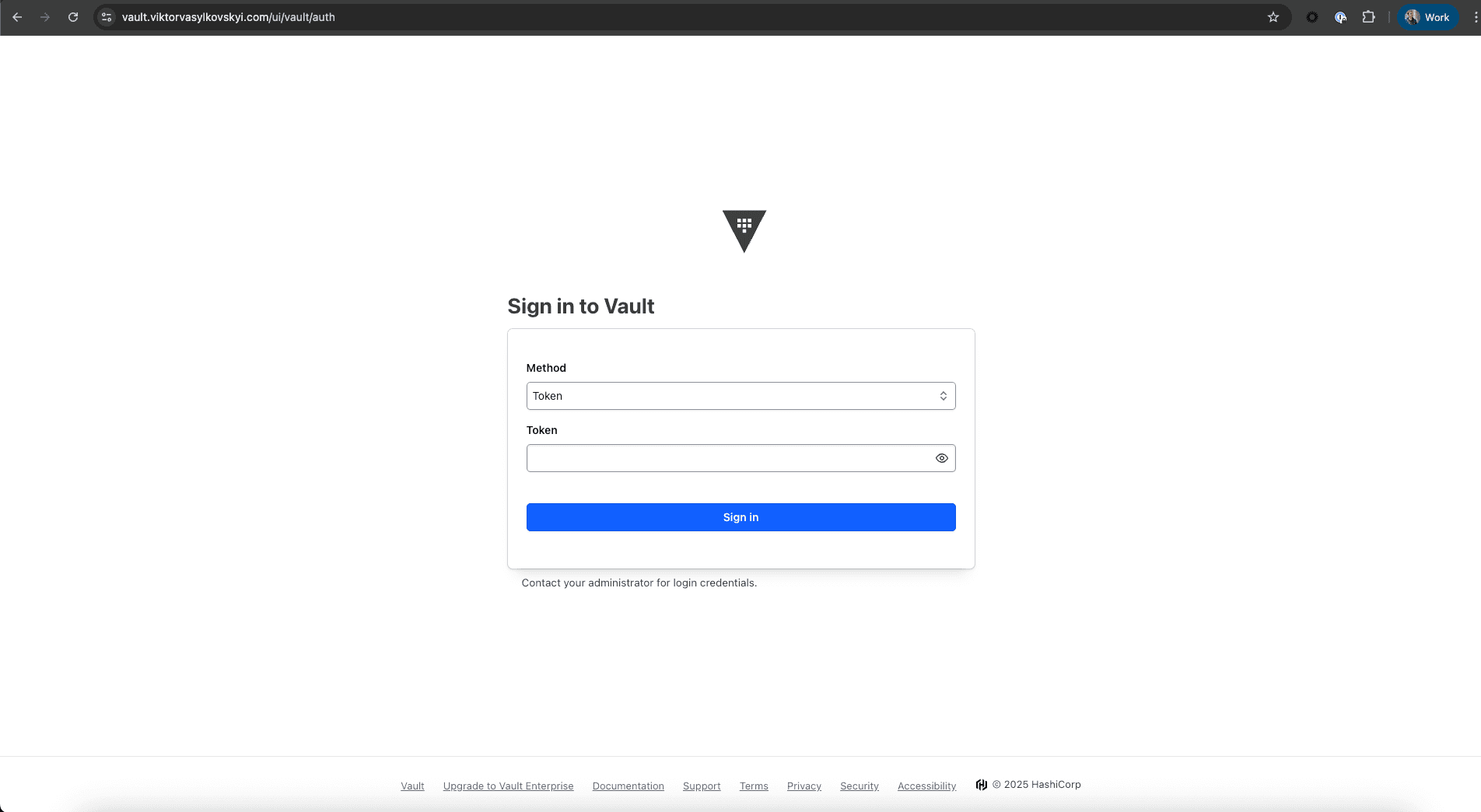
Or locally:
http://<your-pi-ip>:8200Login with the Root Token from the Ansible deployment output.
KV Secrets Engine
The Ansible role automatically enables the KV v2 secrets engine at path kv/. You can verify it's enabled:
ssh pi@raspberrypi
docker exec -e VAULT_TOKEN=<your-root-token> vault vault secrets list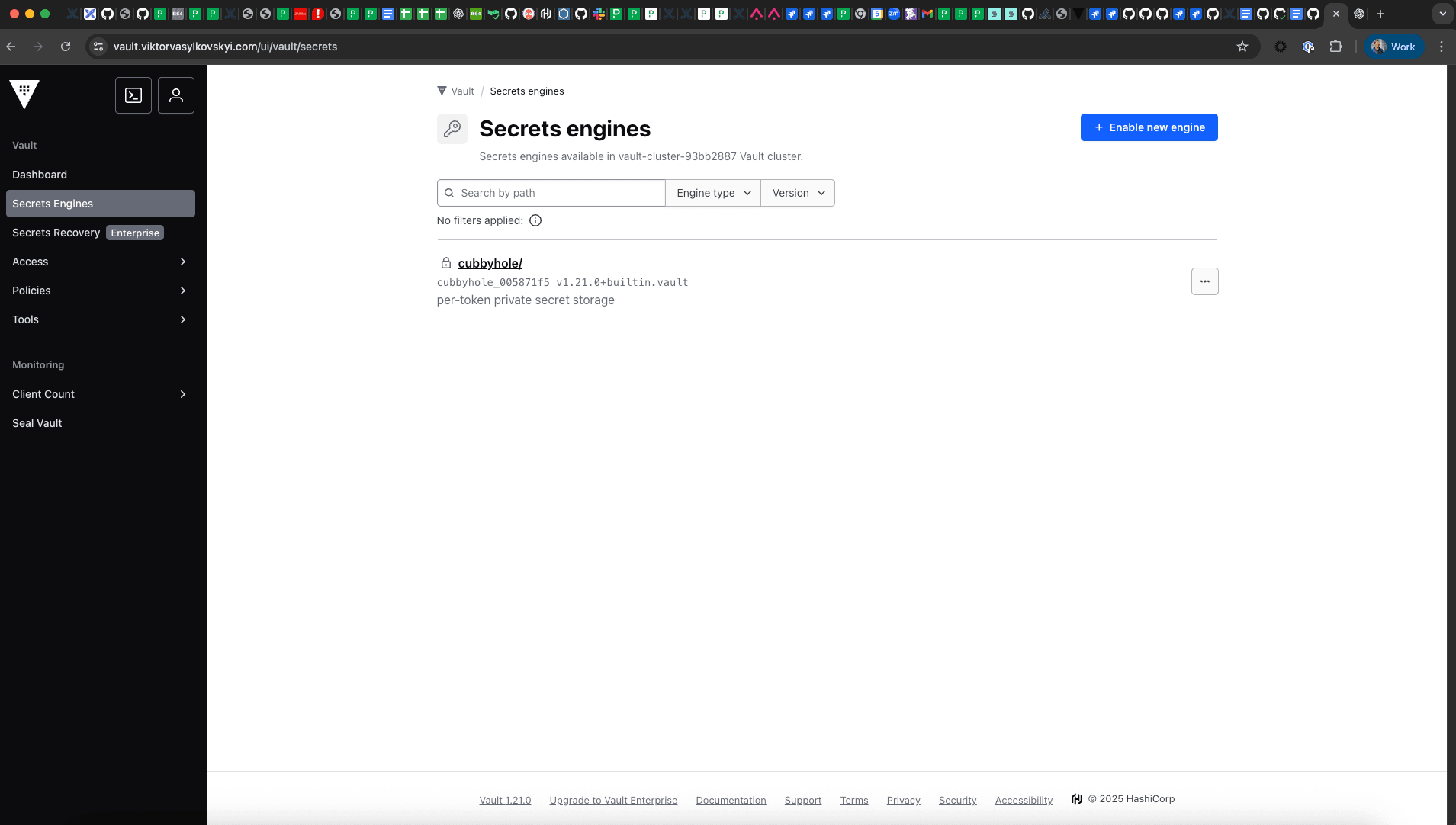
You should see:
Path          Type         Description
----          ----         -----------
kv/           kv           n/a
Creating Your First Secret
Understanding Secret Paths
The KV secrets engine is mounted at kv/. When you create secrets, you organize them by path:
Path Structure:
kv/                          <- Secrets engine mount point
├── myapp/                   <- Application or service name
│   ├── production           <- Environment or config set
│   ├── staging
│   └── development
├── database/
│   └── credentials
└── api-keys/
    ├── github
    └── openai
Important:
- In the UI, you navigate to
kv/myapp/production - In the API/CLI, you use
kv/data/myapp/production(note the/data/prefix for KV v2) - In GitHub Actions with hashicorp/vault-action, you use
kv/data/myapp/production
Create Secret via Web UI
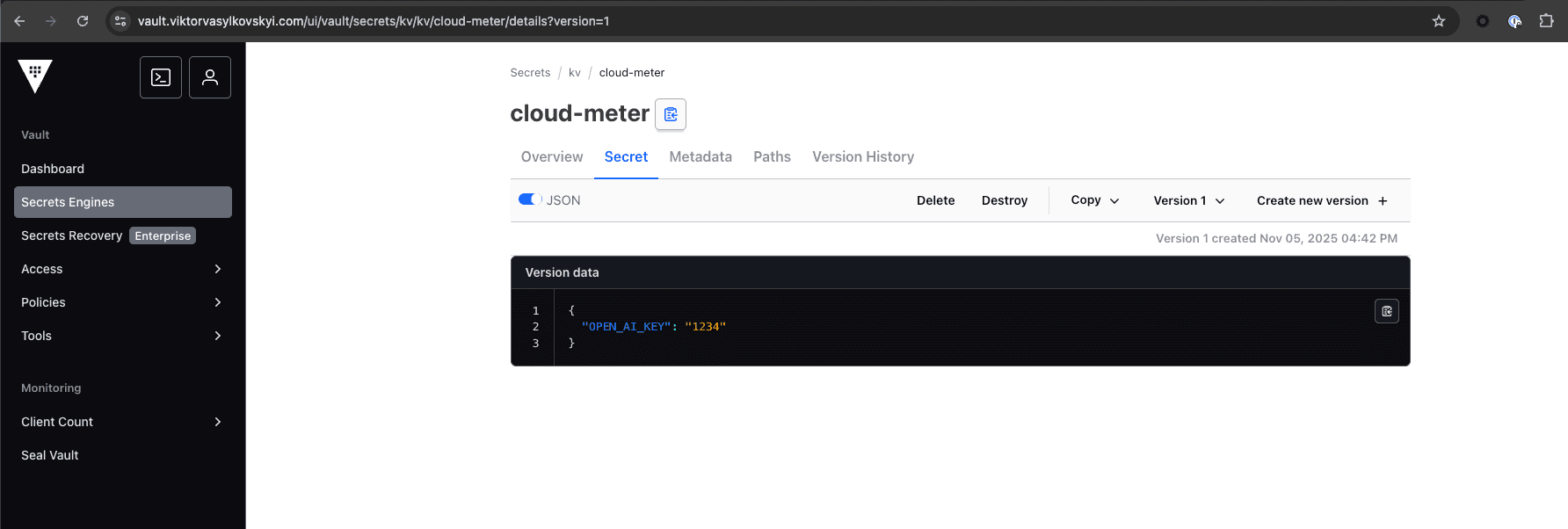
- Navigate to
https://vault.iac-toolbox.com - Login with your root token
- Click on
kv/secrets engine - Click "Create secret +"
- Set Path:
production(or your preferred path likemyapp/production) - Add key-value pairs:
- Key:
DOCKER_USERNAME, Value:your-username - Key:
DOCKER_PASSWORD, Value:your-password - Key:
API_KEY, Value:your-api-key
- Key:
- Click "Save"
Your secret is now at: kv/production
Create Secret via CLI
SSH to your Raspberry Pi and run:
# Set your root token
export VAULT_TOKEN="hvs.YOUR_ROOT_TOKEN_HERE"

# Create secret
docker exec -e VAULT_TOKEN=$VAULT_TOKEN vault \
  vault kv put kv/production \
    DOCKER_USERNAME=your-username \
    DOCKER_PASSWORD=your-password \
    API_KEY=your-api-key
Retrieve Secret to Verify
# Get all keys
docker exec -e VAULT_TOKEN=$VAULT_TOKEN vault \
  vault kv get kv/production

# Get specific key
docker exec -e VAULT_TOKEN=$VAULT_TOKEN vault \
  vault kv get -field=API_KEY kv/production
List Your Secrets
# List all secrets in kv/
docker exec -e VAULT_TOKEN=$VAULT_TOKEN vault \
  vault kv list kv/
Alternative: Retrieve Secrets in Docker Containers
For applications running directly in Docker containers (not via GitHub Actions), here are two approaches:
Option 1: Using Environment Variables from GitHub Actions
The recommended approach is to use GitHub Actions to fetch secrets and pass them as environment variables (see the GitHub Actions section above).
Option 2: Using Vault CLI in Container
# Dockerfile
FROM node:18-alpine

# Install Vault CLI
RUN apk add --no-cache curl && \
    curl -fsSL https://releases.hashicorp.com/vault/1.15.0/vault_1.15.0_linux_arm.zip -o vault.zip && \
    unzip vault.zip && \
    mv vault /usr/local/bin/ && \
    rm vault.zip

COPY . /app
WORKDIR /app

# Fetch secrets on startup
COPY startup.sh /startup.sh
RUN chmod +x /startup.sh

ENTRYPOINT ["/startup.sh"]
#!/bin/sh
# startup.sh
export VAULT_ADDR=http://vault:8200
# Fetch secrets
export API_KEY=$(vault kv get -field=API_KEY kv/myapp)
export DATABASE_URL=$(vault kv get -field=DATABASE_URL kv/myapp)
# Start application
exec node server.jsOption 3: Using Vault Agent (Advanced)
Vault Agent handles authentication and secret rotation automatically:
# docker-compose.yml for your app
services:
  myapp:
    image: myapp:latest
    depends_on:
      - vault-agent
    volumes:
      - vault-secrets:/vault/secrets
    environment:
      - VAULT_ADDR=http://vault:8200

  vault-agent:
    image: hashicorp/vault:latest
    volumes:
      - ./vault-agent-config.hcl:/vault/config/agent.hcl
      - vault-secrets:/vault/secrets
    command: agent -config=/vault/config/agent.hcl

volumes:
  vault-secrets:
Step 12: Using Secrets with GitHub Actions
Your GitHub Actions workflow can fetch secrets from Vault using the official HashiCorp Vault Action plugin.
Configure GitHub Secrets
First, add your Vault token to GitHub Secrets:
- Go to your repository → Settings → Secrets and variables → Actions
- Add new secret:
- Name:
VAULT_TOKEN - Value: Your Vault root token (or better, create a limited token)
- Name:
Create a Limited Vault Token for GitHub Actions
Don't use the root token! Create a limited token with only the permissions needed:
# On Raspberry Pi, create a policy for the GitHub runner
# Replace 'production' with your actual secret path
docker exec -e VAULT_TOKEN=<root-token> vault vault policy write github-runner-policy - <<EOF
# Allow reading secrets from production path
path "kv/data/production" {
  capabilities = ["read"]
}

# Allow listing secrets (optional)
path "kv/metadata/production" {
  capabilities = ["list", "read"]
}
EOF

# Create a token with this policy
docker exec -e VAULT_TOKEN=<root-token> vault \
  vault token create \
  -policy=github-runner-policy \
  -ttl=720h \
  -display-name="github-actions-runner"
Save the generated token as VAULT_TOKEN in GitHub Secrets:
- Go to your repository → Settings → Secrets and variables → Actions
- Add new secret:
VAULT_TOKENwith the token value
Complete GitHub Actions Workflow Example
Create .github/workflows/deploy.yml:
name: Build and Deploy

on:
  push:
    branches: [main]
  workflow_dispatch:

jobs:
  build_docker_image:
    runs-on: [self-hosted, ARM64]
    outputs:
      tag: ${{ steps.set_tag.outputs.tag }}
    steps:
      - name: Check out the repo
        uses: actions/checkout@v4

      # Fetch secrets from Vault
      - name: Import Secrets from Vault
        id: secrets
        uses: hashicorp/vault-action@v2.4.0
        with:
          url: http://localhost:8200
          token: ${{ secrets.VAULT_TOKEN }}
          secrets: |
            kv/data/production DOCKER_USERNAME | DOCKER_USERNAME ;
            kv/data/production DOCKER_PASSWORD | DOCKER_PASSWORD

      - name: Log in to Docker Hub
        uses: docker/login-action@v3
        with:
          username: ${{ env.DOCKER_USERNAME }}
          password: ${{ env.DOCKER_PASSWORD }}

      - name: Build and Push Container Image
        run: |
          TAG=${{ github.sha }}
          docker build -f ./Dockerfile -t ${{ env.DOCKER_USERNAME }}/myapp:$TAG .
          docker push ${{ env.DOCKER_USERNAME }}/myapp:$TAG

      - name: Set output tag
        id: set_tag
        run: echo "tag=${{ github.sha }}" >> "$GITHUB_OUTPUT"

  deploy:
    runs-on: [self-hosted, ARM64]
    needs: build_docker_image
    steps:
      # Fetch secrets from Vault
      - name: Import Secrets from Vault
        id: secrets
        uses: hashicorp/vault-action@v2.4.0
        with:
          url: http://localhost:8200
          token: ${{ secrets.VAULT_TOKEN }}
          secrets: |
            kv/data/production DOCKER_USERNAME | DOCKER_USERNAME ;
            kv/data/production API_KEY | API_KEY

      - name: Stop existing container
        run: |
          docker stop my-app || true
          docker rm my-app || true

      - name: Pull and run new container
        run: |
          TAG=${{ needs.build_docker_image.outputs.tag }}
          docker pull ${{ env.DOCKER_USERNAME }}/myapp:$TAG
          docker run -d \
            --name my-app \
            -p 80:80 \
            -e API_KEY=${{ env.API_KEY }} \
            --restart unless-stopped \
            ${{ env.DOCKER_USERNAME }}/myapp:$TAG
Understanding the Vault Action
The hashicorp/vault-action plugin automatically:
- Connects to your Vault instance
- Authenticates with the token
- Fetches the specified secrets
- Exports them as environment variables
Syntax:
secrets: |
  kv/data/<your-path> <KEY_NAME> | ENV_VAR_NAME ;
  kv/data/<your-path> <KEY_NAME> | ENV_VAR_NAME
Critical Requirements:
- Semicolons are required when fetching multiple secrets
- Each line except the last must end with
; - Without semicolons, the vault-action will treat all lines as a single malformed path and fail
Examples:
kv/data/production API_KEY | API_KEY- fetchesAPI_KEYfromkv/productionand exports as$API_KEYkv/data/myapp/prod DOCKER_USERNAME | DOCKER_USERNAME- fetches fromkv/myapp/prod- Replace
<your-path>with where you stored the secret
Security Best Practices for GitHub Actions
❌ Don't Do This:
on:
pull_request: # DANGEROUS! Forks can access secretstoken: ${{ secrets.VAULT_ROOT_TOKEN }} # Never use root tokencat > /tmp/app.env << EOF # Insecure temp file
API_KEY=$API_KEY
EOF✅ Do This Instead:
1. Limit trigger events:
on:
  push:
    branches: [main]  # Protected branch only
  workflow_dispatch:  # Manual only
2. Use branch protection:
if: github.ref == 'refs/heads/main' # Extra check3. Restrict permissions:
permissions:
  contents: read  # Minimal permissions
4. Create limited Vault tokens:
# Only read access to specific paths
vault policy write github-runner-policy - <<EOF
path "kv/data/myapp" {
  capabilities = ["read"]
}
EOF
5. Secure temporary files:
ENV_FILE=$(mktemp)
chmod 600 "$ENV_FILE"  # Only owner can read
# ... use file ...
shred -u "$ENV_FILE"   # Securely delete
6. Rotate tokens regularly:
# Set TTL when creating tokens
vault token create -policy=github-runner-policy -ttl=720h
7. Enable GitHub environment protection:
In your repository settings, create an environment (e.g., "production"):
- Require reviewers before deployment
- Limit to specific branches
- Add secrets specific to that environment
Then update your workflow:
jobs:
  deploy:
    runs-on: self-hosted
    environment: production  # Requires approval
Multi-Environment Setup
For different environments (dev, staging, prod):
name: Deploy Multi-Environment

on:
  push:
    branches: [main, staging, dev]

jobs:
  deploy:
    runs-on: self-hosted

    steps:
      - name: Checkout
        uses: actions/checkout@v4

      - name: Set environment
        id: env
        run: |
          if [[ "${{ github.ref }}" == "refs/heads/main" ]]; then
            echo "name=production" >> $GITHUB_OUTPUT
          elif [[ "${{ github.ref }}" == "refs/heads/staging" ]]; then
            echo "name=staging" >> $GITHUB_OUTPUT
          else
            echo "name=development" >> $GITHUB_OUTPUT
          fi

      - name: Import Secrets
        uses: hashicorp/vault-action@v2.4.0
        with:
          url: http://localhost:8200
          token: ${{ secrets.VAULT_TOKEN }}
          secrets: |
            kv/data/${{ steps.env.outputs.name }}/myapp API_KEY | API_KEY ;
            kv/data/${{ steps.env.outputs.name }}/myapp DATABASE_URL | DATABASE_URL

      - name: Deploy
        run: |
          echo "Deploying to ${{ steps.env.outputs.name }}"
          docker compose up -d
This fetches secrets from different paths based on the branch:
main→kv/production/myappstaging→kv/staging/myappdev→kv/development/myapp
Note: Remember the semicolon after the first secret line!
Automated Unsealing on Boot
Vault "seals" itself on restart for security. The Ansible role creates systemd services that automatically unseal Vault on boot.
Systemd Services
/etc/systemd/system/vault.service
[Unit]
Description=HashiCorp Vault
After=docker.service
Requires=docker.service

[Service]
Type=oneshot
RemainAfterExit=yes
WorkingDirectory=/home/pi/vault
ExecStart=/usr/bin/docker compose up -d
ExecStop=/usr/bin/docker compose down
User=pi

[Install]
WantedBy=multi-user.target
/etc/systemd/system/vault-unseal.service
[Unit]
Description=Vault Auto-Unseal
After=vault.service
Requires=vault.service

[Service]
Type=oneshot
WorkingDirectory=/home/pi/vault
ExecStartPre=/bin/sleep 10
ExecStart=/usr/bin/docker compose --profile unseal run --rm vault-unsealer
User=pi

[Install]
WantedBy=multi-user.target
How it works:
- On boot,
vault.servicestarts the Vault container - After 10 seconds,
vault-unseal.serviceruns the initialization/unseal script - Ansible parses
vault-init.jsonand unseals Vault if needed - Your Vault is now unsealed and ready to use!
Verify services:
ssh pi@raspberrypi
sudo systemctl status vault
sudo systemctl status vault-unseal
Updating Secrets
Via UI:
- Navigate to your secret (e.g.,
kv/myapp) - Click "Create new version"
- Update the values
- Click "Save"
Vault keeps all previous versions!
Via CLI:
docker exec -e VAULT_TOKEN=<token> vault \
  vault kv put kv/myapp API_KEY=new-key-here
View Secret History:
# List versions
docker exec -e VAULT_TOKEN=<token> vault \
  vault kv metadata get kv/myapp

# Get specific version
docker exec -e VAULT_TOKEN=<token> vault \
  vault kv get -version=1 kv/myapp
GitHub Actions Security Checklist
Before deploying with GitHub Actions, ensure:
- No pull_request triggers - Only
pushto protected branches - Limited Vault token - Not using root token
- Branch protection enabled - Require reviews for main branch
- Self-hosted runner secured - Runner has restricted access
- Token rotation scheduled - Set TTL and rotate regularly
- Audit logging enabled - Track all Vault access
- Environment protection - Use GitHub environments for production
Security Best Practices
Don't Use Root Token for Apps
The root token has unlimited permissions. Create limited tokens for applications:
# Create policy for app
docker exec -e VAULT_TOKEN=<root-token> vault vault policy write myapp-policy - <<EOF
path "kv/data/myapp" {
  capabilities = ["read"]
}
EOF

# Create token with policy
docker exec -e VAULT_TOKEN=<root-token> vault \
  vault token create -policy=myapp-policy -ttl=720h
Use this limited token in your applications instead of the root token.
Backup Your Vault Data
Critical files to backup:
~/vault/data/vault-init.json- Root token and unseal key~/vault/data/- All vault data
# On Raspberry Pi
cd ~
sudo tar -czf vault-backup-$(date +%Y%m%d).tar.gz vault/data/

# Copy to safe location
scp vault-backup-*.tar.gz user@backup-server:/backups/
Important: Store backups encrypted and off-device!
Audit Logging
Audit logging is automatically enabled by the Ansible role. View logs:
ssh pi@raspberrypi
tail -f ~/vault/logs/audit.log | jq
To check if enabled:
docker exec -e VAULT_TOKEN=<root-token> vault vault audit listClean Up and Redeploy
If you need to completely reset Vault:
ssh pi@raspberrypi
cd ~/vault && docker compose down && sudo rm -rf data && mkdir -p data && sudo chown 100:1000 data
Then re-run the Ansible playbook:
ansible-playbook -i inventory/all.yml playbooks/main.yml --tags vaultTroubleshooting
Vault Won't Unseal
Check unseal key:
ssh pi@raspberrypi
cat ~/vault/data/vault-init.json
Manual unseal:
# Get unseal key from vault-init.json
docker exec vault vault operator unseal <unseal-key>
Container Won't Start
Check logs:
ssh pi@raspberrypi
docker logs vault
Common issues:
- Port 8200 already in use:
sudo lsof -i :8200 - Permission errors: Data directory should be owned by UID 100
- Storage issues: Ensure
~/vault/dataexists with correct permissions
Fix permissions:
cd ~/vault
sudo chown 100:1000 data
sudo chown 100:1000 logs
Forgot Root Token
If you lose your root token, you can generate a new one:
# Unseal first
docker exec vault vault operator unseal <unseal-key>

# Generate root token
docker exec -it vault vault operator generate-root -init
docker exec -it vault vault operator generate-root
Secrets Not Available in Container
Check Vault address:
docker exec myapp env | grep VAULT_ADDRTest connectivity:
docker exec myapp curl http://vault:8200/v1/sys/healthVerify token permissions:
docker exec -e VAULT_TOKEN=<token> vault \
  vault token lookup
Comparison: Ansible Vault vs HashiCorp Vault
| Feature | Ansible Vault | HashiCorp Vault |
|---|---|---|
| Secrets on disk | Plain text (/etc/raspberrypi.env) | Encrypted at rest |
| Access pattern | Read from file | Fetch via API |
| Rotation | Manual re-deployment | Update in place |
| Audit logging | None | Built-in |
| Dynamic secrets | No | Yes |
| UI | No | Yes |
| Complexity | Simple | Moderate |
| Best for | Basic setups | Production systems |
Security Trade-offs: This Setup Isn't Perfect Either
Let's be honest: no security system is bulletproof. While HashiCorp Vault is a massive improvement over plain text files, this particular setup has trade-offs you should understand.
Remaining Security Concerns
1. Auto-Unseal Keys Stored on Disk
Our setup stores the unseal key in /home/pi/vault/data/vault-init.json to enable automatic unsealing on boot.
The problem:
# Anyone with SSH access can read this file
cat ~/vault/data/vault-init.json
# This gives them the unseal key and root token
Why we accept this trade-off:
- Without auto-unseal, your Vault stays sealed after every reboot
- You'd need to manually SSH in and unseal Vault after power outages
- For a home lab or small production setup, this is impractical
- Enterprise Vault uses cloud KMS for auto-unseal, but that's overkill (and expensive) for a Raspberry Pi
Mitigation:
- Restrict SSH access tightly (key-based auth only, no password)
- Use fail2ban to prevent brute force attacks
- Keep system packages updated
- For truly sensitive secrets, use cloud-hosted Vault (AWS, GCP) with KMS auto-unseal
2. TLS Disabled (Cloudflare Handles It)
Our vault.hcl has tls_disable = 1:
listener "tcp" {
  address     = "0.0.0.0:8200"
  tls_disable = 1
}
The problem:
- Communication between containers and Vault on localhost is unencrypted
- If someone compromises your Pi, they can sniff local network traffic
Why we accept this trade-off:
- Cloudflare tunnel provides TLS for external access
- localhost traffic doesn't leave the machine
- Enabling TLS requires certificate management and renewal
- Self-hosted runners on the same Pi don't need TLS for localhost
Mitigation:
- Only access Vault UI via Cloudflare tunnel (https://vault.iac-toolbox.com)
- For production at scale, enable TLS with Let's Encrypt or internal CA
- Monitor for unauthorized processes on the Pi
3. File-Based Storage (Not Clustered)
We use storage "file" instead of a distributed backend like Consul:
storage "file" {
  path = "/vault/data"
}
The problem:
- Single point of failure - if the SD card corrupts, you lose all secrets
- No high availability - Vault goes down when the Pi reboots
- Can't scale to multiple Vault instances
Why we accept this trade-off:
- Running a Consul cluster for a single Pi is massive overkill
- SD card corruption is rare with modern cards and proper shutdown procedures
- Downtime during reboots is acceptable for home labs and small deployments
- We can still backup the data directory regularly
Mitigation:
# Automated backup script (run via cron)
tar -czf vault-backup-$(date +%Y%m%d).tar.gz ~/vault/data/
rsync -avz vault-backup-*.tar.gz user@backup-server:/backups/
4. Root Token Usage
For simplicity, we use the root token in GitHub Actions (or a long-lived token).
The problem:
- Tokens don't expire automatically
- If GitHub Secrets are compromised, attacker gets full Vault access
- No dynamic credential rotation
Why we accept this trade-off:
- Setting up AppRole auth adds significant complexity
- For self-hosted runners on the same Pi, security boundary is already breached if compromised
- Token rotation with 720h TTL is a reasonable middle ground
- Most home labs don't need dynamic credentials
Mitigation:
- Use policy-restricted tokens, never the actual root token
- Set reasonable TTLs (720h = 30 days)
- Rotate tokens quarterly
- For production at scale, implement AppRole or Kubernetes auth
Why This Setup Is Still Production-Ready
Despite these trade-offs, this configuration is solid for most use cases:
✅ For Small Production Deployments:
- Single-server setups (1-5 applications)
- Controlled access (small team, known users)
- Acceptable downtime window (minutes, not milliseconds)
- Budget-conscious (no cloud KMS fees)
✅ Compared to Alternatives:
- Much better than: Plain text env files, GitHub Secrets for everything, hardcoded credentials
- On par with: Cloud-hosted secrets managers for single-instance apps (AWS Secrets Manager, GCP Secret Manager cost $$$)
- Not as robust as: Multi-region Vault Enterprise with HSM, but that costs thousands/month
✅ Real-World Production Use:
- Startups use this exact setup for their first few services
- Side projects that make money run on similar configurations
- Internal tools and admin dashboards don't need Fort Knox security
When to Upgrade
You should consider enterprise Vault or cloud-hosted solutions when:
- Multi-datacenter deployment - Need Vault in multiple regions
- Strict compliance requirements - HIPAA, PCI-DSS, SOC 2
- Team size >10 people - Need sophisticated access policies
- SLA requirements - Need 99.99% uptime guarantees
- Dynamic secrets at scale - Generating thousands of temp credentials daily
The Bottom Line
Perfect security doesn't exist. Every system has trade-offs between:
- Security vs. Convenience
- Cost vs. Features
- Complexity vs. Maintainability
This Vault setup dramatically improves your security posture from plain text files while remaining:
- Practical - You can maintain it yourself
- Affordable - Runs on a $50 Raspberry Pi
- Automated - Survives reboots without manual intervention
- Sufficient - Good enough for most production workloads
Key insight: The biggest security improvements come from basic hygiene (not leaving secrets in plain text, using access controls, having audit logs). The remaining edge cases require exponentially more effort for marginal gains.
For a home lab, side project, or small startup? This setup is excellent. You've got 90% of the security at 10% of the complexity.
Next Steps
You now have enterprise-grade secrets management on your Raspberry Pi! Here's what you can do:
- Create application-specific policies - Don't use the root token for apps
- Store your application secrets - Move secrets from GitHub Secrets to Vault
- Update your CI/CD pipelines - Configure GitHub Actions to use Vault
- Set up secret rotation - Regularly rotate API keys and tokens
- Enable AppRole authentication - For better security than static tokens
- Configure backup automation - Schedule regular backups of Vault data
Quick Links
- Vault UI: https://vault.iac-toolbox.com
- Credentials:
ssh pi@raspberrypi 'cat ~/vault/data/vault-init.json' - Documentation: Vault Documentation
- Redeploy:
ansible-playbook -i inventory/all.yml playbooks/main.yml --tags vault
Your secrets are now secure, versioned, and audited. No more plain text files!
Previous: Managing Secrets | Next: Grafana Setup