Collecting Metrics with Prometheus and Node Exporter (Automated)
Previous: Grafana Setup
You've got Grafana running, but it's pretty useless without data. In this guide, we'll add Prometheus (metrics storage) and Node Exporter (system metrics collector) using automated Ansible deployment to actually start tracking what's happening on your Raspberry Pi.
Think of it this way: Grafana is your dashboard, Prometheus is your database, and Node Exporter is your sensor. Let's wire them up automatically!
What this tutorial covers:
- Automated Prometheus + Node Exporter deployment using Ansible
- Auto-configuring Prometheus as Grafana data source
- Auto-importing Node Exporter Full dashboard
- Understanding the metrics architecture
Time to complete: 5 minutes (automated deployment)
Github Repository
All the configuration and deployment scripts from this guide are available in https://github.com/IaC-Toolbox/iac-toolbox-raspberrypi. Clone it and follow along!
What Are We Adding?
Prometheus: A time-series database that scrapes metrics from targets every 15 seconds and stores them. It's like a database specifically designed for metrics - CPU usage over time, memory consumption, network traffic, etc.
Node Exporter: Exposes your Raspberry Pi's hardware and OS metrics at an HTTP endpoint that Prometheus can scrape. It reads from /proc, /sys, and other system directories to get CPU, memory, disk, and network stats.
Together they give you:
- Real-time system metrics (CPU, RAM, disk, network)
- Historical data (see what happened yesterday or last week)
- A data source for Grafana to query and visualize
How It Fits Together
Here's the full observability stack after this tutorial:
┌────────────────────────────────────────────────────────────────┐
│                   FULL METRICS STACK                           │
└────────────────────────────────────────────────────────────────┘

  🌍 You → https://grafana.iac-toolbox.com
       │
       ▼
  ┌─────────────────────────────────────────────────┐
  │  Grafana (Port 3000)                            │
  │  • Queries Prometheus for data                  │
  │  • Displays dashboards                          │
  │  • Prometheus auto-configured as data source    │
  └────────────────┬────────────────────────────────┘
                   │
                   │ PromQL queries
                   │ "What's the CPU usage?"
                   ▼
  ┌─────────────────────────────────────────────────┐
  │  Prometheus (Port 9090)                         │
  │  • Scrapes metrics every 15s                    │
  │  • Stores time-series data                      │
  │  • Keeps last 15 days                           │
  └────────────────┬────────────────────────────────┘
                   │
                   │ HTTP GET /metrics
                   │ every 15 seconds
                   ▼
  ┌─────────────────────────────────────────────────┐
  │  Node Exporter (Port 9100)                      │
  │  • Reads /proc, /sys                            │
  │  • Exposes metrics at /metrics                  │
  │  • CPU, memory, disk, network stats             │
  └─────────────────────────────────────────────────┘

  Data flows: Node Exporter → Prometheus → Grafana
  All connected via shared 'monitoring' Docker network
What You Need
Before starting:
- Grafana already running (previous tutorial)
- SSH access to your Raspberry Pi
- The iac-toolbox-raspberrypi repository
Game Plan
Here's what Ansible will do automatically:
- Deploy Prometheus and Node Exporter containers
- Join them to the
monitoringDocker network (same as Grafana) - Configure Prometheus to scrape Node Exporter every 15 seconds
- Create Prometheus data source in Grafana via API
- Import Node Exporter Full dashboard (Dashboard ID 1860)
- Set up systemd service for auto-start on reboot
All with one command!
Step 1: Optional Configuration
The default Prometheus retention is 15 days, which is perfect for a Raspberry Pi. If you want to change it, edit the configuration:
# Edit Ansible configuration
nano ansible-configurations/inventory/group_vars/all.yml
Find the prometheus section and adjust retention:
prometheus:
  enabled: true
  retention: "15d"  # Change to: 7d, 30d, 60d, etc.
Why 15 days?
Prometheus stores data on your SD card/SSD. Time-series data grows fast. For a Raspberry Pi with limited storage, 15 days is a good balance between historical data and disk usage.
Check your disk space:
ssh <user>@<pi> 'df -h /'If you have lots of space, increase retention. If running low, decrease it.
Step 2: Deploy with Ansible
Navigate to your Ansible directory and run the playbook:
cd ansible-configurations
source .env

# Deploy Prometheus and Node Exporter
./run-playbook.sh playbooks/main.yml --tags prometheus
The playbook will automatically:
- Deploy Prometheus container on port 9090
- Deploy Node Exporter container on port 9100
- Join both to the
monitoringDocker network - Configure Prometheus to scrape Node Exporter every 15 seconds
- Wait for services to be healthy
- Create "Prometheus" data source in Grafana
- Import "Node Exporter Full" dashboard
- Create systemd service for auto-start on reboot
Takes about 2-3 minutes to pull images and configure everything.
What Gets Deployed
Here's the Docker Compose configuration that Ansible generates:
services:
  prometheus:
    image: prom/prometheus:latest
    container_name: prometheus
    restart: unless-stopped
    ports:
      - "9090:9090"
    volumes:
      - ./prometheus.yml:/etc/prometheus/prometheus.yml:ro
      - prometheus_data:/prometheus
    command:
      - '--config.file=/etc/prometheus/prometheus.yml'
      - '--storage.tsdb.retention.time=15d'
      - '--storage.tsdb.path=/prometheus'
    networks:
      - monitoring

  node-exporter:
    image: prom/node-exporter:latest
    container_name: node-exporter
    restart: unless-stopped
    pid: host
    ports:
      - "9100:9100"
    volumes:
      - /proc:/host/proc:ro
      - /sys:/host/sys:ro
      - /:/rootfs:ro
    command:
      - '--path.procfs=/host/proc'
      - '--path.sysfs=/host/sys'
      - '--collector.filesystem.mount-points-exclude=^/(sys|proc|dev|host|etc)($$|/)'
    networks:
      - monitoring

volumes:
  prometheus_data:

networks:
  monitoring:
    name: monitoring
    external: true
Key points:
--storage.tsdb.retention.time=15dkeeps metrics for 15 days to save disk space- Node Exporter runs with
pid: hostto access system-level metrics - Volumes mount
/proc,/sys, and/as read-only so Node Exporter can read system stats - Both services auto-restart if they crash
- Both join the
monitoringnetwork to communicate with Grafana
Prometheus Configuration
Ansible creates prometheus.yml with this scrape config:
global:
  scrape_interval: 15s
  evaluation_interval: 15s

scrape_configs:
  - job_name: 'prometheus'
    static_configs:
      - targets: ['localhost:9090']

  - job_name: 'node'
    static_configs:
      - targets: ['node-exporter:9100']
What this does:
scrape_interval: 15s- Collect metrics every 15 secondsjob_name: 'prometheus'- Prometheus monitors itself (meta!)job_name: 'node'- Scrapes Node Exporter for system metrics
Important: It's node-exporter:9100 not node-exporter:9090. Port 9090 is Prometheus, port 9100 is Node Exporter!
Prometheus will hit http://node-exporter:9100/metrics every 15 seconds to grab fresh data.
Step 3: Verify Everything Is Running
SSH to your Pi and check the containers:
ssh <your-user>@<raspberry-pi>

# Check containers
docker ps | grep -E 'prometheus|node-exporter'
You should see both running.
Check systemd service:
sudo systemctl status prometheusShould be active (running).
Step 4: Check Prometheus Targets
Verify Prometheus is scraping Node Exporter:
# Access Prometheus UI via SSH tunnel
ssh -L 9090:localhost:9090 <your-user>@<raspberry-pi>
Then open in your browser:
http://localhost:9090In the Prometheus UI:
- Go to Status → Targets
- You should see two targets:
prometheus (1/1 up)- greennode (1/1 up)- green
If they show "UP", Prometheus is successfully scraping metrics!
Step 5: View Your Dashboard in Grafana
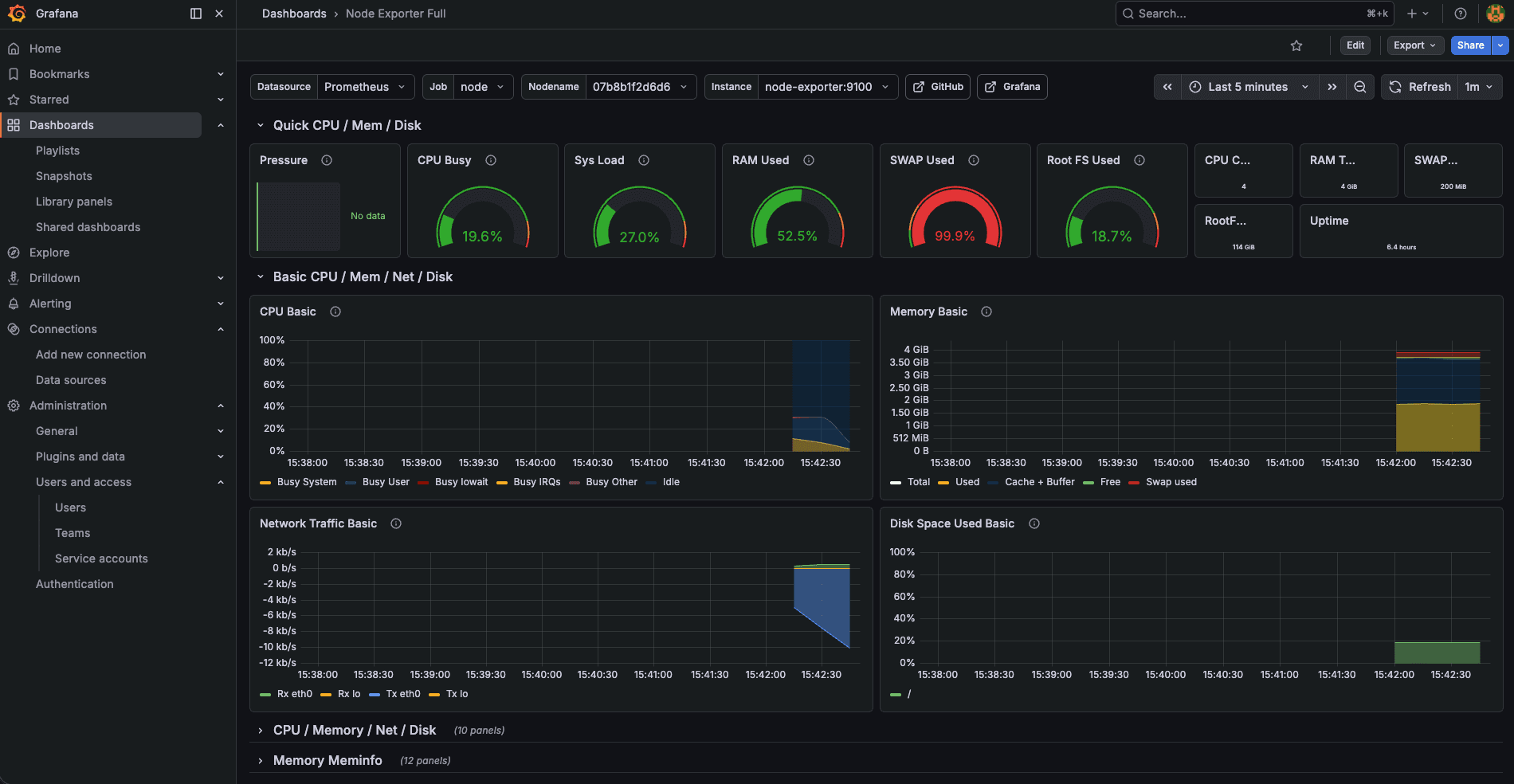
The Ansible playbook automatically imported the "Node Exporter Full" dashboard. Let's view it!
Open Grafana in your browser:
https://grafana.iac-toolbox.comLogin with your admin credentials.
Access the dashboard:
- Click the menu icon (☰) → Dashboards
- Click on Node Exporter Full
Or go directly to:
https://grafana.iac-toolbox.com/d/rYdddlPWk/node-exporter-fullYou should see a beautiful dashboard with:
- CPU usage graphs
- Memory usage
- Disk I/O
- Network traffic
- System load
- Filesystem usage
- And many more metrics!
All updating in real-time every 15 seconds! 📊
Step 6: Verify Data Source
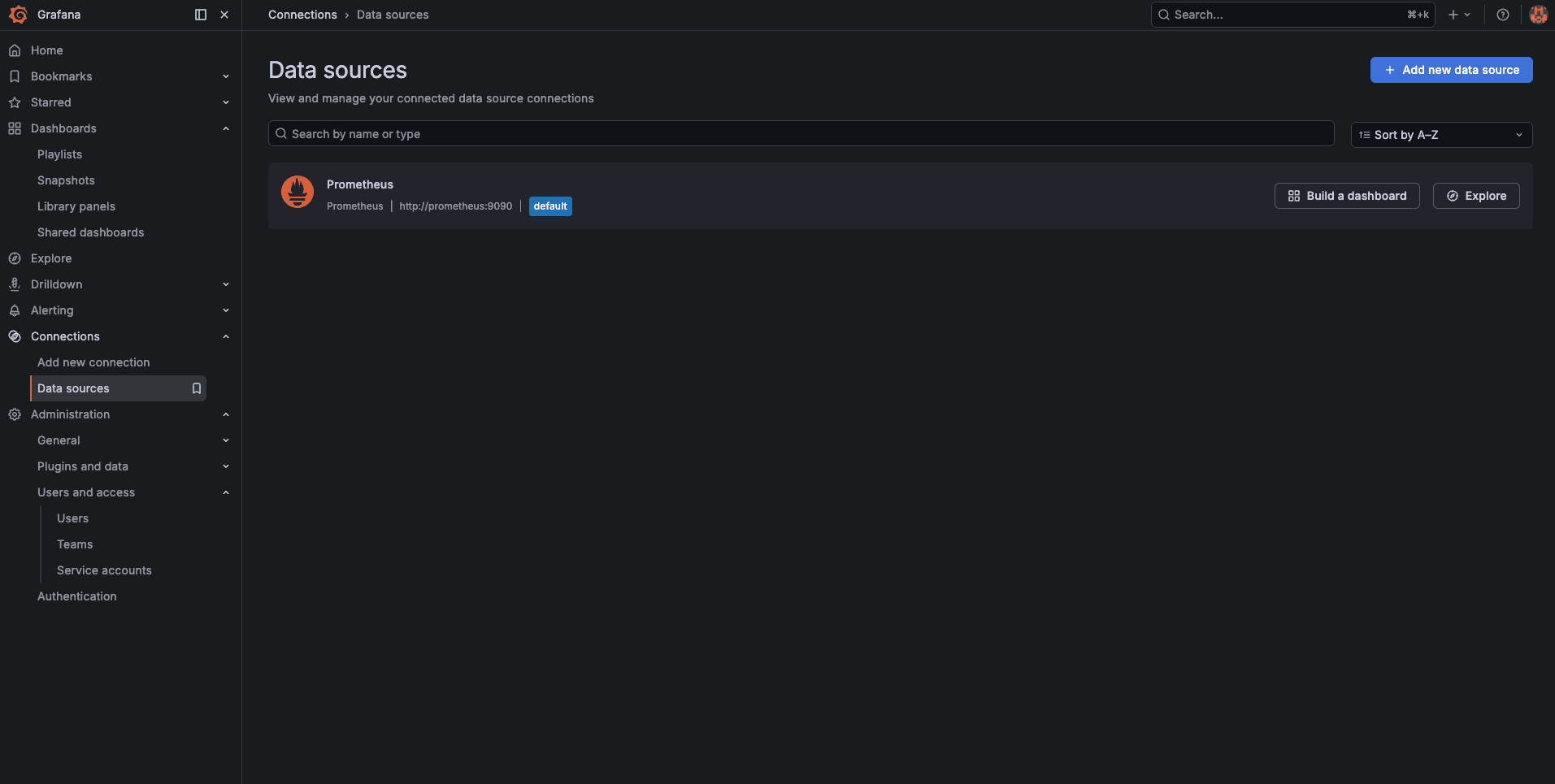
Check that Prometheus was auto-configured:
- In Grafana, go to Menu (☰) → Connections → Data sources
- You should see Prometheus listed
- Click on it
- URL should be:
http://prometheus:9090 - At the bottom, you should see "Data source is working" ✅
The Ansible playbook created this for you automatically!
Testing Metrics in Prometheus UI
Before building custom dashboards, you can query metrics directly in Prometheus:
Open the Prometheus UI (via SSH tunnel):
ssh -L 9090:localhost:9090 <your-user>@<raspberry-pi>Navigate to: http://localhost:9090
Go to Graph and try these queries:
Current CPU idle percentage:
avg(rate(node_cpu_seconds_total{mode="idle"}[5m])) * 100Available memory (bytes):
node_memory_MemAvailable_bytesRoot filesystem free space:
node_filesystem_free_bytes{mountpoint="/"}Network bytes received:
rate(node_network_receive_bytes_total{device="eth0"}[5m])Click Execute and switch to the Graph tab. You should see data!
This is useful for testing queries before adding them to Grafana dashboards.
What Node Exporter Exposes
Curious what metrics you're collecting? Check the raw endpoint:
ssh <your-user>@<raspberry-pi>
curl http://localhost:9100/metrics | less
You'll see hundreds of metrics like:
# CPU
node_cpu_seconds_total{cpu="0",mode="idle"} 234567.89
node_cpu_seconds_total{cpu="0",mode="system"} 1234.56

# Memory
node_memory_MemTotal_bytes 4147871744
node_memory_MemAvailable_bytes 2894520320

# Disk
node_filesystem_avail_bytes{device="/dev/mmcblk0p2",mountpoint="/"} 25769803776

# Network
node_network_receive_bytes_total{device="eth0"} 123456789
These are all the metrics Prometheus is collecting every 15 seconds!
Understanding Retention
We set Prometheus to keep data for 15 days:
--storage.tsdb.retention.time=15dWhy only 15 days?
Prometheus stores data on your SD card or SSD. Time-series data grows fast:
- 15 seconds × 4 samples/min × 60 min × 24 hours × 15 days = ~86,400 data points per metric
- Node Exporter exposes 100+ metrics
- That adds up!
For a Raspberry Pi with limited storage, 15 days is a good balance between historical data and disk usage.
Check your storage:
# Overall disk space
ssh <user>@<pi> 'df -h /'

# Prometheus data size
ssh <user>@<pi> 'docker exec prometheus du -sh /prometheus'
Want to keep more? Edit inventory/group_vars/all.yml and change retention: "30d", then redeploy.
Storage Location
Prometheus data is stored in a Docker volume:
# Check volume size
ssh <user>@<pi> 'docker exec prometheus du -sh /prometheus'

# List volumes
ssh <user>@<pi> 'docker volume ls | grep prometheus'
The volume persists even if you restart containers, so you won't lose your metrics history.
Troubleshooting
Containers Won't Start
Check the logs for each service:
ssh <user>@<pi>
docker logs prometheus
docker logs node-exporter
Common issues:
- Port 9090 or 9100 already in use
- Prometheus config syntax error
- Node Exporter permission issues
- Network
monitoringdoesn't exist (Grafana must be deployed first!)
Targets Show "DOWN" in Prometheus
Check if Node Exporter is reachable:
ssh <user>@<pi>
docker exec prometheus curl http://node-exporter:9100/metrics
If that fails, check they're on the same network:
docker inspect prometheus | grep -A 5 Networks
docker inspect node-exporter | grep -A 5 Networks
Both should show monitoring network.
Grafana Can't Connect to Prometheus
Verify the data source URL is http://prometheus:9090 not http://localhost:9090.
Test from Grafana container:
ssh <user>@<pi>
docker exec grafana curl http://prometheus:9090/-/healthy
Should return "Prometheus Server is Healthy."
No Metrics Showing Up in Dashboard
Wait 15-30 seconds - Prometheus scrapes every 15 seconds, so fresh data takes a moment.
Check Prometheus is scraping:
# Via SSH tunnel
ssh -L 9090:localhost:9090 <user>@<pi>
# Then visit: http://localhost:9090/targets
Both targets should show "UP".
Dashboard Shows "No Data"
Check the time range in Grafana (top right). Make sure it's set to "Last 5 minutes" or "Last 1 hour".
Also verify Prometheus data source is set as default:
- Go to Connections → Data sources
- Click Prometheus
- Ensure "Default" toggle is ON
Disk Space Issues
Check your storage:
ssh <user>@<pi>
df -h /
docker exec prometheus du -sh /prometheus
If you're running low:
- Reduce retention in
group_vars/all.ymlto7dor3d - Redeploy:
./run-playbook.sh playbooks/main.yml --tags prometheus
Reset Prometheus and Node Exporter
If you need to start fresh:
# SSH to Pi
ssh <user>@<pi>

# Stop and remove
sudo systemctl stop prometheus
docker stop prometheus node-exporter
docker rm prometheus node-exporter

# Remove data volume (optional - loses all historical data)
docker volume rm observability_prometheus_data

# Redeploy
exit
cd ansible-configurations
source .env
./run-playbook.sh playbooks/main.yml --tags prometheus
Next Steps
You now have a complete metrics collection stack! Here's what you can do:
Explore More Dashboards
Grafana has thousands of community dashboards:
- Go to https://grafana.com/grafana/dashboards/
- Search for "Node Exporter", "Raspberry Pi", or "Docker"
- Note the Dashboard ID
- In Grafana, go to Dashboards → New → Import
- Enter the Dashboard ID and click Load
Popular options:
- 1860: Node Exporter Full (already installed!)
- 11074: Node Exporter for Prometheus Dashboard
- 10180: Raspberry Pi Monitoring
Add More Exporters
Want to monitor more than just system metrics?
- cAdvisor: Docker container metrics
- Blackbox Exporter: Endpoint monitoring (HTTP, TCP, ICMP)
- postgres_exporter: PostgreSQL database metrics
- nginx_exporter: Nginx web server metrics
Each exporter can be added to Prometheus scrape config.
Set Up Alerts
Configure Grafana alerts when metrics cross thresholds:
- Edit a dashboard panel
- Go to Alert tab
- Set conditions (e.g., CPU > 80%)
- Configure notifications (Slack, email, webhook)
Custom Queries
Build your own queries in the Explore view:
- Click Explore (compass icon)
- Select Prometheus data source
- Use PromQL to build queries
- Save useful queries as dashboard panels
Example queries:
# CPU usage per core
rate(node_cpu_seconds_total[5m])

# Memory usage percentage
100 * (1 - (node_memory_MemAvailable_bytes / node_memory_MemTotal_bytes))

# Disk write rate
rate(node_disk_written_bytes_total[5m])

# Network receive rate (Mbps)
rate(node_network_receive_bytes_total[5m]) * 8 / 1000000
Summary
Congratulations! You've successfully deployed a complete metrics collection and visualization stack.
✅ What You Accomplished:
- Prometheus time-series database collecting metrics
- Node Exporter exposing system metrics
- Auto-configured Grafana data source
- Node Exporter Full dashboard imported and working
- 15-day metrics retention
- Systemd services for auto-start on reboot
- All services on shared Docker network
📝 Key Files Created:
/home/<user>/observability/docker-compose.yml- Prometheus + Node Exporter config/home/<user>/observability/prometheus.yml- Scrape configuration/etc/systemd/system/prometheus.service- Systemd service- Grafana dashboard: Node Exporter Full (auto-imported)
🔑 Access Details:
- Grafana Dashboard: https://grafana.iac-toolbox.com/d/rYdddlPWk/node-exporter-full
- Prometheus UI (via SSH tunnel):
ssh -L 9090:localhost:9090 <user>@<pi>then http://localhost:9090 - Node Exporter metrics:
http://<pi-ip>:9100/metrics
🎯 What Makes This Different:
Unlike manual deployment, this automated approach:
- Takes 5 minutes instead of 20-30 minutes
- Auto-configures Grafana data source (no manual steps!)
- Auto-imports dashboard (ready immediately)
- Eliminates configuration errors
- Configurable retention via Ansible variables
- All services on same Docker network
- Systemd managed for reliability
🚀 You Now Have:
A production-ready observability stack with:
- Real-time system monitoring
- Historical metrics (15 days)
- Beautiful dashboards
- Foundation for alerting
- Scalable architecture for adding more exporters
Go explore your metrics and see what your Pi is really doing! 📊
Previous: Grafana Setup | Next: Logs with Loki