Automated PagerDuty Integration for Grafana Alerts
Previous: Grafana Alerts
You've got alerts firing in Grafana, but email notifications aren't cutting it. You need something that'll wake you up at 3am when your Raspberry Pi goes down. That's where PagerDuty comes in - an incident management platform that'll send push notifications, phone calls, and SMS, escalating until someone responds.
In this guide, we'll enable PagerDuty integration for your Grafana alerts using our automated setup script. Simply add three environment variables to your .env file and run the setup script - everything else happens automatically via Terraform.
What this tutorial covers:
- Automated PagerDuty service creation
- Grafana integration configured automatically
- All 5 alerts routed to PagerDuty incidents
- Push notifications to mobile device
- Incident lifecycle management (trigger → acknowledge → resolve)
Time to complete: 10-15 minutes (mostly PagerDuty account setup)
Github Repository
All the Terraform configuration and automation scripts from this guide are available in https://github.com/IaC-Toolbox/iac-toolbox-raspberrypi. Clone it and follow along!
Why PagerDuty?
Email is passive: Emails sit in your inbox. You might not see them for hours.
PagerDuty is active: Push notifications, phone calls, SMS. It keeps escalating until someone responds.
Incident tracking: Every alert becomes an incident with a lifecycle - triggered, acknowledged, resolved. You can see patterns over time.
On-call schedules: Rotate who gets alerted. Essential if you're working with a team.
What We're Building
Our automated setup replaces email-based alert notifications with PagerDuty:
┌────────────────────────────────────────────────────────────────┐
│              AUTOMATED PAGERDUTY INTEGRATION                   │
└────────────────────────────────────────────────────────────────┘

  You add to .env:
    PAGERDUTY_TOKEN=xxx
    PAGERDUTY_USER_EMAIL=xxx
       │
       ▼
  You run: ./scripts/setup.sh
       │
       ├─► Terraform detects PagerDuty credentials
       │
       ├─► Creates PagerDuty service automatically
       │    (Raspberry-Pi-Monitoring)
       │
       ├─► Creates Grafana integration
       │    (Events API v2)
       │
       ├─► Configures PagerDuty contact point
       │    (replaces email)
       │
       └─► Updates notification policy
            (routes all 5 alerts to PagerDuty)

  Alert fires → PagerDuty incident → Push notification 📱
What happens automatically:
- PagerDuty service created: "Raspberry-Pi-Monitoring"
- Grafana integration configured with Events API v2
- Integration key generated and passed to Grafana
- Contact point switched from email to PagerDuty
- All 5 alerts route to PagerDuty incidents
No manual Terraform commands needed! Everything runs via the setup script.
Prerequisites
Before starting, ensure you have:
- Completed the Grafana Alerts tutorial
- 5 alerts working (CPU, Memory, Disk, Offline, Temperature)
- Terraform installed (setup script handles this automatically)
- Email for PagerDuty account signup
If you haven't set up Grafana alerts yet, complete that tutorial first.
Step 1: Create PagerDuty Account & Get API Token
Sign Up for PagerDuty
Head over to pagerduty.com and sign up for a free account.
Choose your region carefully:
- Europe: Select EU region → URL will be
https://yourcompany.eu.pagerduty.com - Other regions: Select US → URL will be
https://yourcompany.pagerduty.com
Note your region - you'll need it for the .env configuration.
Free Tier Includes:
- ✅ Unlimited incidents
- ✅ Mobile app (iOS/Android)
- ✅ Push notifications
- ✅ Email notifications
- ✅ 1 escalation policy
- ✅ Up to 5 users
- ✅ 25 SMS per month
Generate API Token
Once logged in to your PagerDuty account:
-
Navigate to Integrations → API Access Keys (or Developer Tools → API Access on some accounts)
-
Click Create New API Key
-
Configure the token:
- Name: "Terraform-Homelab" (or any descriptive name)
- Description: "Automated alert provisioning for Raspberry Pi"
- Permissions: Select Read/Write (required to create services)
-
Click Create Key
-
IMPORTANT: Copy the token immediately - you won't see it again!
- Store it in a password manager
- Or save it in a secure note temporarily
The API token looks like: u+AbCdEf123456789... (long alphanumeric string)
Step 2: Add PagerDuty Credentials to .env
Navigate to your project configuration directory:
cd ansible-configurationsOpen your .env file and add the PagerDuty configuration:
nano .env # or vim, code, etc.Add these three variables at the bottom (scroll past existing configs):
# ============================================
# PagerDuty Integration (Optional)
# ============================================
PAGERDUTY_TOKEN=u+YourActualTokenHere123456789...
PAGERDUTY_SERVICE_REGION=us  # or "eu" if you chose EU region
PAGERDUTY_USER_EMAIL=your-pagerduty-email@example.com
Replace with your actual values:
PAGERDUTY_TOKEN: The API token you just copied from PagerDutyPAGERDUTY_SERVICE_REGION:usoreu(based on your PagerDuty URL)PAGERDUTY_USER_EMAIL: The email address you used to sign up for PagerDuty
Region Selection:
- If your PagerDuty URL is
https://yourcompany.pagerduty.com→ useus - If your PagerDuty URL is
https://yourcompany.eu.pagerduty.com→ useeu
Save and close the file (:wq in vim, Ctrl+X in nano).
Verify Configuration
Check that variables are set correctly:
grep PAGERDUTY .envYou should see all three PagerDuty variables with your values.
Step 3: Run Automated Setup
Now that PagerDuty credentials are configured, the setup script will automatically create everything you need.
Navigate back to the project root:
cd .. # Back to iac-toolbox-raspberrypi rootRun the setup script:
./scripts/setup.sh --terraform-onlyUse --terraform-only since your infrastructure (Grafana, Prometheus) is already deployed. This flag skips Ansible and only runs Terraform to update the alert configuration.
What Happens During Setup
The script automatically:
- Loads environment variables from
.env - Generates terraform.tfvars with PagerDuty credentials
- Initializes Terraform and downloads PagerDuty provider
- Creates PagerDuty service: "Raspberry-Pi-Monitoring"
- Creates Grafana integration with Events API v2
- Generates integration key automatically
- Replaces email contact point with PagerDuty contact point
- Updates notification policy to route to PagerDuty
- Applies changes with auto-approve (no manual confirmation)
Watch the output - you'll see:
Configuring Grafana alerts with Terraform...
✓ Generated terraform.tfvars

Initializing Terraform...
Initializing provider plugins...
- Finding PagerDuty/pagerduty versions matching "~> 3.0"...
Terraform has been successfully initialized!

Applying Grafana alert configuration...
pagerduty_service.raspberry_pi[0]: Creating...
pagerduty_service.raspberry_pi[0]: Creation complete after 1s
pagerduty_service_integration.grafana[0]: Creating...
pagerduty_service_integration.grafana[0]: Creation complete after 1s
grafana_contact_point.pagerduty[0]: Creating...
grafana_contact_point.pagerduty[0]: Creation complete after 1s
grafana_notification_policy.default: Updating...
grafana_notification_policy.default: Update complete after 1s
grafana_contact_point.email[0]: Destroying...
grafana_contact_point.email[0]: Destruction complete after 1s

Apply complete! Resources: 3 added, 1 changed, 1 destroyed.

✓ Grafana alerts configured successfully

========================================
Setup completed successfully!
========================================

Grafana Alerts:
  - Access: https://grafana.iac-toolbox.com/alerting/list
  - 5 alerts configured: CPU (5%), Memory (90%), Disk (80%), Offline (5m), Temp (75°C)
  - Notifications: PagerDuty (incidents created automatically)
  - PagerDuty Service: Raspberry-Pi-Monitoring
  - Install mobile app: iOS/Android for push notifications
The entire process takes about 30 seconds.
Step 4: Verify PagerDuty Integration
Let's confirm everything was created correctly.
Check PagerDuty Service
Open your PagerDuty dashboard:
https://your-company.pagerduty.com/service-directoryYou should see:
- Service Name: "Raspberry-Pi-Monitoring"
- Status: Active (green)
- Integration: Grafana (Events API v2)
Click on the service to see details:
- Escalation policy: "Default"
- Auto-resolve timeout: 4 hours
- Acknowledgement timeout: 10 minutes
Check Grafana Contact Point
Open Grafana:
https://grafana.iac-toolbox.comNavigate to Alerting → Contact points
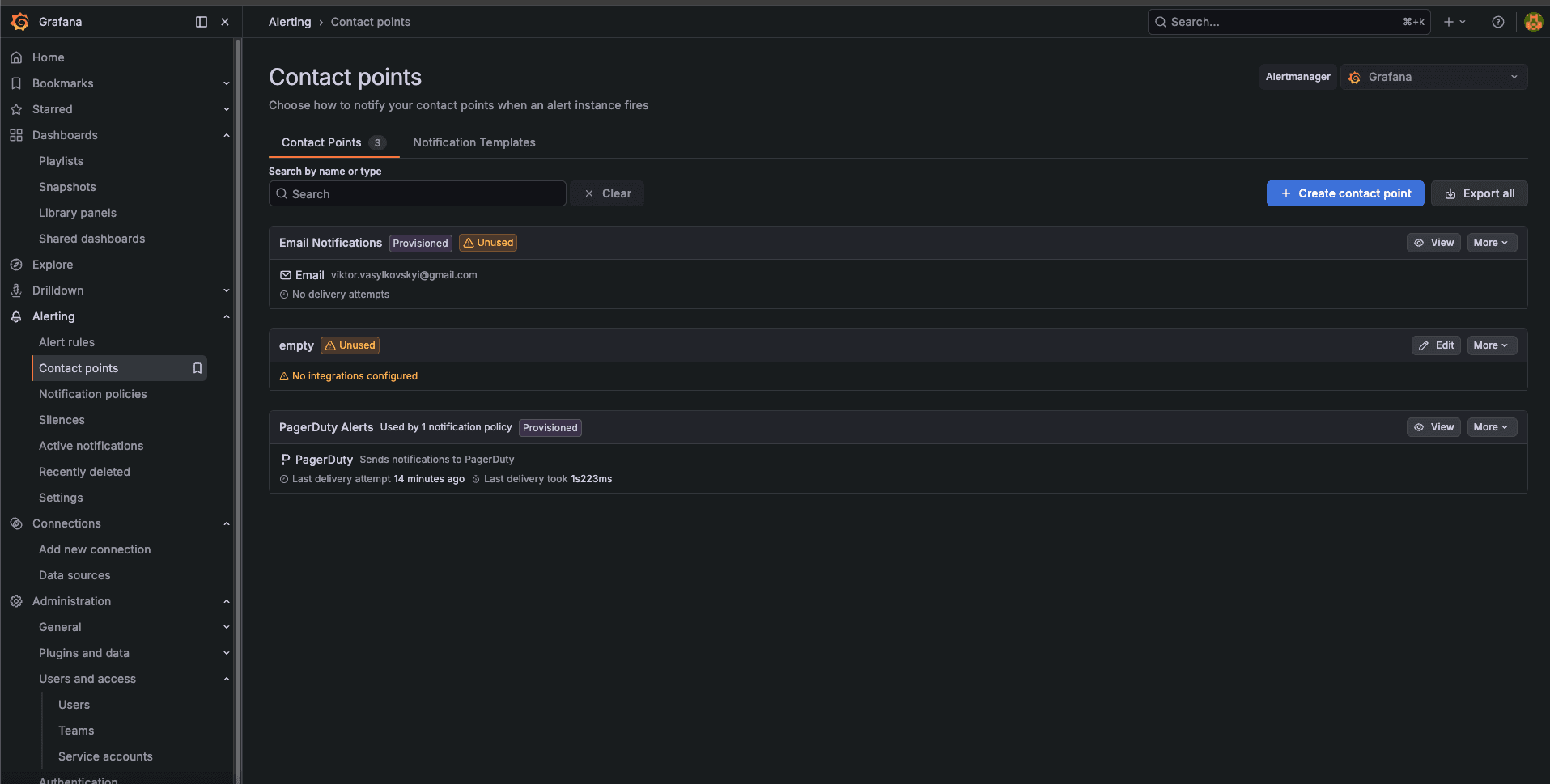
You should see:
- ✅ PagerDuty Alerts (active contact point)
- ❌ Email Notifications (deleted - no longer present)
Click on "PagerDuty Alerts" to verify:
- Integration key is configured (shows as
***sensitive***) - Severity: critical
- Summary template present
Check Notification Policy
Navigate to Alerting → Notification policies
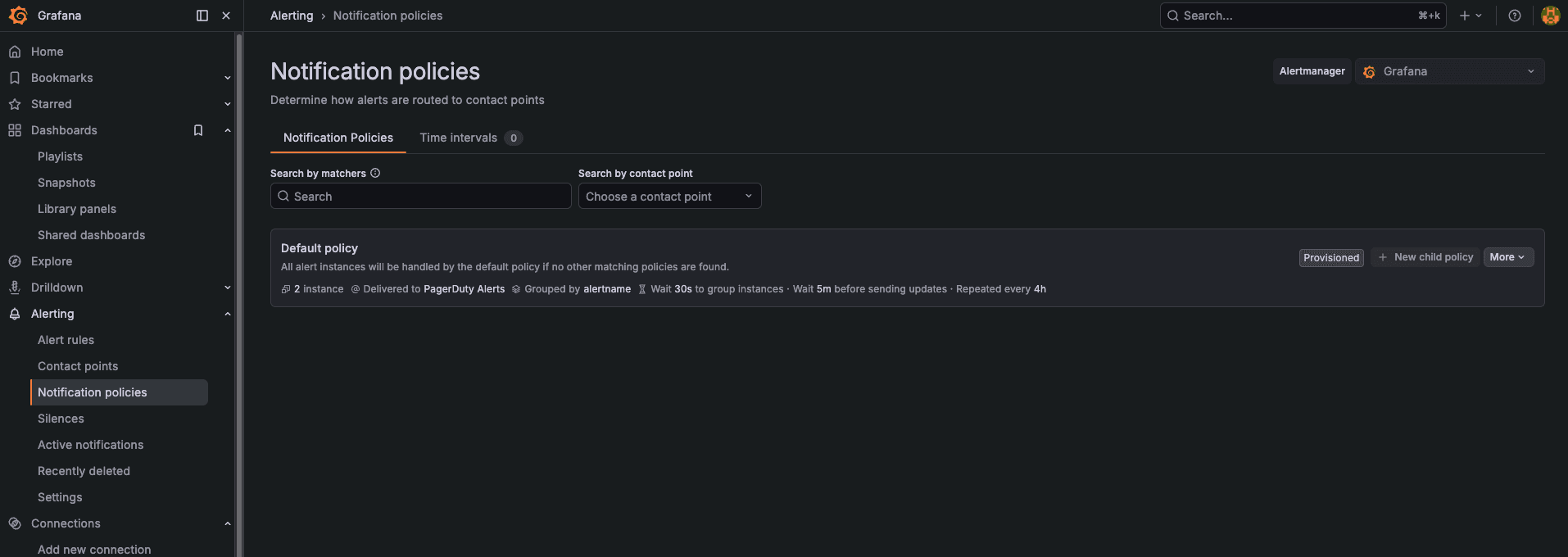
You should see:
- Default policy routes to → PagerDuty Alerts
- Group by: alertname
- Group wait: 30s
- Repeat interval: 4h
Check Alert Rules
Navigate to Alerting → Alert rules → Homelab Alerts
All 5 alerts should still be present:
- High CPU Usage
- High Memory Usage
- Low Disk Space
- Device Offline
- High CPU Temperature
No changes to alert rules - only the routing changed.
Step 5: Install Mobile App & Test
Install PagerDuty Mobile App
Before testing, install the PagerDuty app:
- iOS: App Store
- Android: Play Store
Log in with your PagerDuty account. Enable notifications!
Trigger a CPU Alert
SSH to your Pi and stress the CPU:
ssh <your-user>@<raspberry-pi>

# Install stress tool if not already installed
sudo apt-get install -y stress

# Stress all CPU cores for 6 minutes
stress --cpu $(nproc) --timeout 360s
Watch It Flow
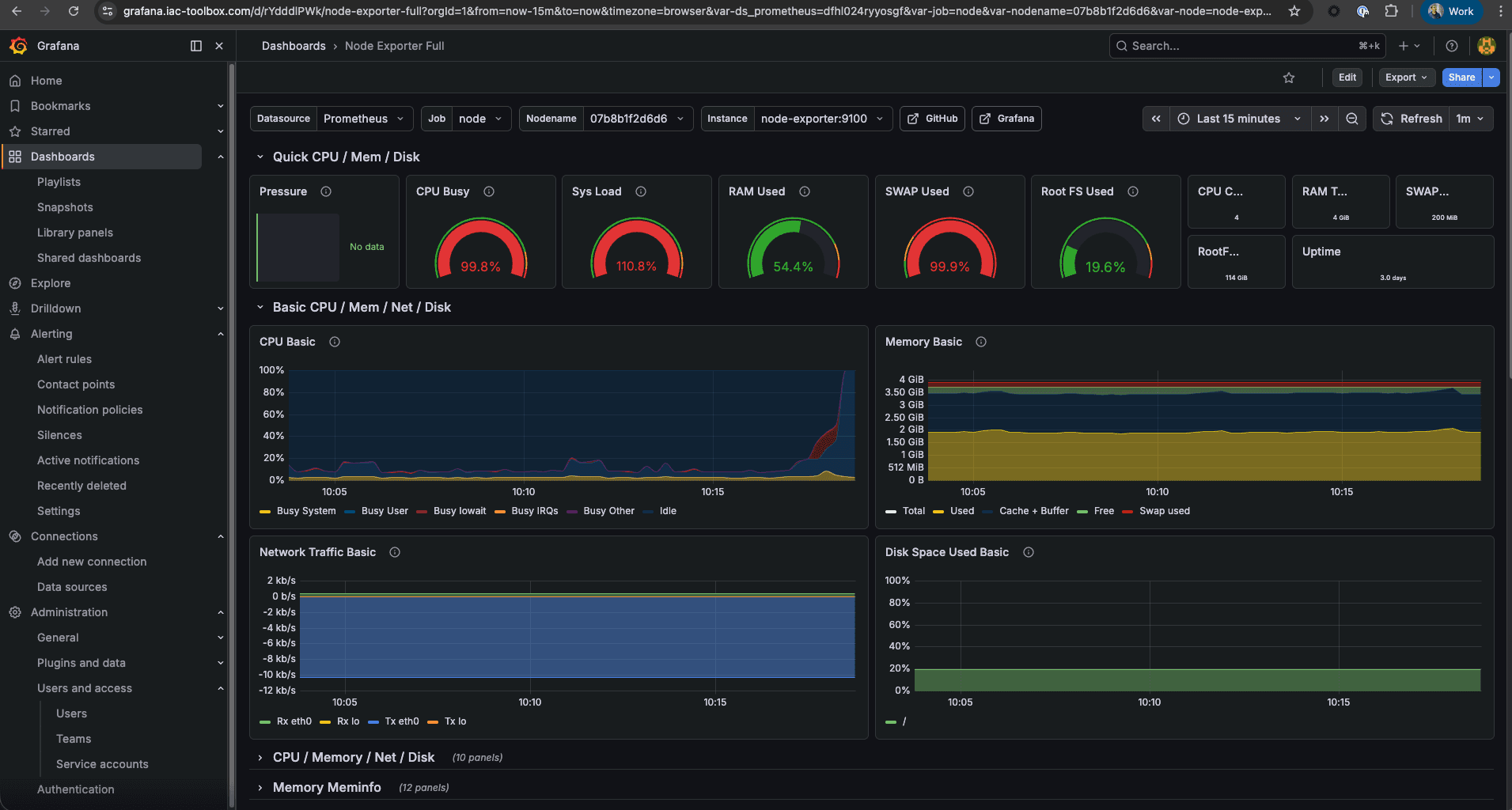
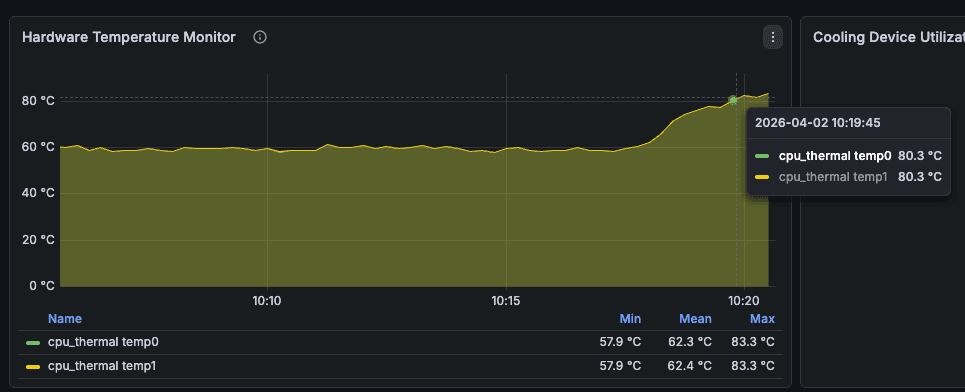
Here's what happens:
Minute 1-5: CPU spikes above 80% (testing threshold)
- Grafana evaluates every 5 minutes
- Condition is true but
for = "5m"hasn't elapsed yet - Alert in "Pending" state
Minute 5-10: Alert fires!
- Grafana sends event to PagerDuty contact point
- PagerDuty receives the event via Events API v2
- Incident is created in PagerDuty
Minute 10+: You get notified
- 📱 Push notification on your phone
- 📧 Email from PagerDuty
- (If configured) SMS or phone call
- (If configured) SMS or phone call
Check PagerDuty UI:
https://your-company.pagerduty.com/incidentsYou should see a new incident: "High CPU Usage"
Acknowledge the Incident
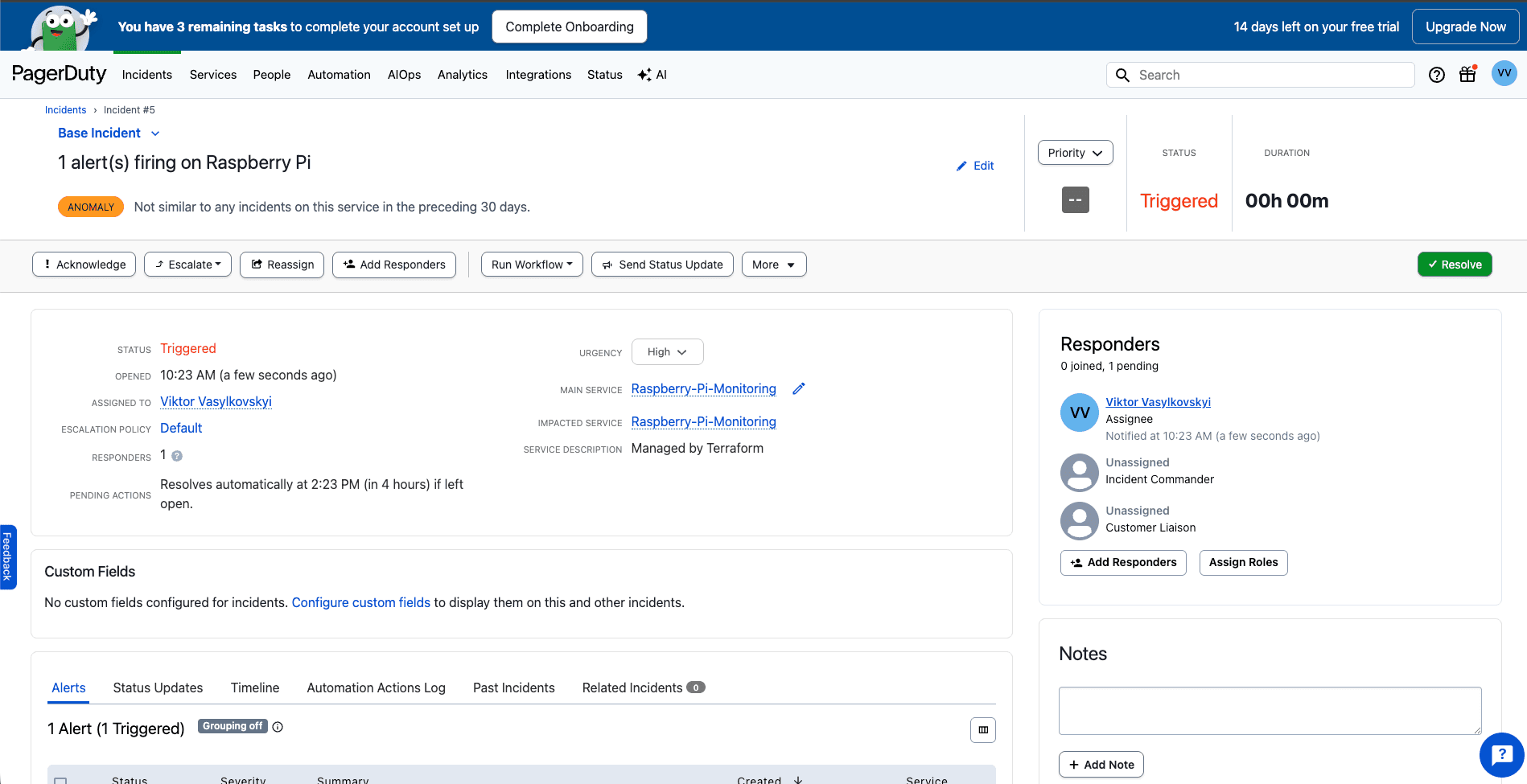
In the mobile app or web UI:
- Click on the incident
- Click Acknowledge
This tells PagerDuty "I see it, I'm working on it" and stops the escalation.
Resolve the Incident
Kill the stress test:
pkill stressWait 5-10 minutes for CPU to drop. The alert should auto-resolve in Grafana, which then resolves the PagerDuty incident.
Or manually resolve it:
- Click on the incident
- Click Resolve
Congratulations! You just completed the full incident lifecycle.
Verify in PagerDuty UI
Check your PagerDuty dashboard:
Service Directory:
https://your-company.pagerduty.com/service-directoryYou should see:
- Raspberry-Pi-Monitoring service
- Grafana integration listed under it
- Green checkmark if everything is connected
Recent Incidents:
Click on the test incident to see:
- Alert details from Grafana
- Timeline of notifications sent
- When it was acknowledged and resolved
- Which user was on-call
Understanding the Flow
Here's exactly what happens when an alert fires:
1. Prometheus scrapes metrics (every 15s)
   ↓
2. Grafana evaluates alert rules (every 60s)
   ↓
3. Condition true for 5 minutes
   ↓
4. Grafana fires alert
   ↓
5. Contact point receives it
   ↓
6. Notification sent to PagerDuty API
   ↓
7. PagerDuty creates incident
   ↓
8. Escalation policy kicks in
   ↓
9. You get notified (push, email, SMS, call)
   ↓
10. You acknowledge → stops escalation
   ↓
11. You fix the issue
   ↓
12. Alert resolves in Grafana
   ↓
13. PagerDuty incident auto-resolves
The for duration (5 minutes in our CPU alert) prevents false alarms from brief spikes.
Troubleshooting
Setup Failed with "401 Unauthorized"
Symptom: Terraform fails during setup with authentication error
Cause: Wrong or expired PagerDuty API token
Fix:
- Generate new token in PagerDuty UI (Integrations → API Access Keys)
- Update
.envwith new token:cd ansible-configurations nano .env # Update PAGERDUTY_TOKEN=new-token-here - Re-run setup:
cd ..
./scripts/setup.sh --terraform-only
"User not found" Error
Symptom: Terraform fails with "user not found with email: xxx"
Cause: Email mismatch between .env and PagerDuty account
Fix:
- Check your email in PagerDuty: People & Teams → Users
- Copy the exact email (case-sensitive)
- Update
.env:PAGERDUTY_USER_EMAIL=exact-email@example.com - Re-run setup
Alert Fires But No PagerDuty Incident
Symptom: Alert shows "Firing" in Grafana but no incident in PagerDuty
Debug steps:
-
Test contact point in Grafana:
- Go to Alerting → Contact points → PagerDuty Alerts
- Click "Test"
- Should create test incident in PagerDuty
-
Check integration key:
cd terraform/grafana-alerts
terraform output pagerduty_integration_key
Verify key exists and is not "not-configured"
-
Test PagerDuty API directly:
curl -X POST \
  -H "Content-Type: application/json" \
  -d '{
    "routing_key": "YOUR_INTEGRATION_KEY",
    "event_action": "trigger",
    "payload": {
      "summary": "Manual test incident",
      "severity": "critical",
      "source": "curl-test"
    }
  }' \
  https://events.pagerduty.com/v2/enqueue
Should return
202 Accepted -
Check Grafana logs:
ssh pi@raspberrypi.local
docker logs grafana --tail 50 | grep -i pagerduty
No notifications on phone?
Check the PagerDuty mobile app:
- Are you logged in?
- Are notifications enabled in iOS/Android settings?
- Is your user on-call? (Check PagerDuty → On-Call → Schedules)
By default, you're always on-call if you're the only user.
Incident created but not resolving automatically?
Grafana might not be sending the resolve event. Check Grafana alert rules:
no_data_state  = "NoData"
exec_err_state = "Error"
These should be set, not "Alerting". Otherwise no-data or errors trigger new alerts.
Getting Too Many Notifications
Symptom: Being paged repeatedly for same issue
Tune these settings in PagerDuty UI:
- Escalation Policy → Edit "Default"
- Increase acknowledgement timeout from 10min to 30min
- Add escalation rules if needed
Or update Terraform files:
Edit terraform/grafana-alerts/pagerduty.tf:
acknowledgement_timeout = 1800 # 30 minutes instead of 10Then apply:
cd terraform/grafana-alerts
terraform apply -auto-approve
Reduce repeat notifications in Grafana:
Edit terraform/grafana-alerts/alerts.tf:
repeat_interval = "12h" # Instead of 4hSwitching Back to Email
To disable PagerDuty and return to email:
-
Remove PagerDuty variables from
.env:cd ansible-configurations nano .env # Delete or comment out PAGERDUTY_TOKEN line -
Re-run setup:
cd ..
./scripts/setup.sh --terraform-only
Terraform will automatically:
- Destroy PagerDuty resources
- Create email contact point
- Update notification policy
PagerDuty Free vs Paid
Free Tier includes:
- Unlimited incidents
- Mobile app
- Email, push notifications
- 1 escalation policy
- 5 users
- 25 SMS per month
Paid plans add:
- Phone call notifications
- Multiple escalation policies
- Advanced analytics
- Slack integration
- Postmortems
- SLA reporting
For a personal Raspberry Pi or small project, free is plenty!
Understanding the Automated Flow
Here's what the setup script does behind the scenes:
Terraform Resources Created
When PAGERDUTY_TOKEN is present in .env:
-
PagerDuty Service (
pagerduty_service.raspberry_pi)- Name: "Raspberry-Pi-Monitoring"
- Auto-resolve: 4 hours
- Acknowledgement timeout: 10 minutes
-
Grafana Integration (
pagerduty_service_integration.grafana)- Type: Events API v2
- Integration key generated automatically
-
PagerDuty Contact Point (
grafana_contact_point.pagerduty)- Replaces email contact point
- Integration key from step 2
-
Updated Notification Policy (
grafana_notification_policy.default)- Routes to PagerDuty instead of email
Conditional Logic
The Terraform code uses conditionals:
locals {
  pagerduty_enabled = var.pagerduty_token != ""
}

resource "grafana_contact_point" "email" {
  count = local.pagerduty_enabled ? 0 : 1
  # Only created if PagerDuty NOT configured
}

resource "grafana_contact_point" "pagerduty" {
  count = local.pagerduty_enabled ? 1 : 0
  # Only created if PagerDuty IS configured
}
This means:
- Empty
PAGERDUTY_TOKEN→ Email contact point - Set
PAGERDUTY_TOKEN→ PagerDuty contact point
No manual switching needed!
Next Steps
You now have production-grade incident management!
Immediate actions:
- Install PagerDuty mobile app (iOS/Android)
- Enable push notifications in phone settings
- Test with a real alert (lower CPU threshold temporarily)
- Practice incident workflow: acknowledge → investigate → resolve
Tuning:
- Monitor for false positives over next week
- Adjust thresholds if needed
- Tune alert "for" duration (currently 5m for all)
- Consider different thresholds for different times (maintenance windows)
Advanced (optional):
- Set up Grafana mute timings for planned maintenance
- Create custom escalation policies (paid feature)
- Add more alert rules for application-specific metrics
- Integrate Slack for non-critical notifications
Summary
You've automated PagerDuty integration for Grafana alerts with zero manual Terraform commands!
What you accomplished:
- ✅ Added 3 environment variables to
.env - ✅ Ran one command:
./scripts/setup.sh --terraform-only - ✅ PagerDuty service created automatically
- ✅ Grafana integration configured
- ✅ All 5 alerts route to PagerDuty incidents
- ✅ Push notifications on mobile device
The automated flow:
- Environment variables →
terraform.tfvars - Terraform detects PagerDuty credentials
- Creates PagerDuty service: "Raspberry-Pi-Monitoring"
- Creates Grafana integration with Events API v2
- Switches contact point from email to PagerDuty
- Updates notification policy routing
No manual Terraform needed! Everything integrated into the setup script.
To switch back to email:
- Remove
PAGERDUTY_TOKENfrom.env - Re-run
./scripts/setup.sh --terraform-only - Automatically destroys PagerDuty resources and restores email
Your Raspberry Pi monitoring is now production-ready with active alerting. When something breaks at 3am, you'll get a push notification - not an email you might miss until morning.
Install the mobile app, test with a real alert, and practice the incident workflow. 📱
Previous: Grafana Alerts | Next: Conclusion